
FullHD Wireless
HD Set for HDMI
WHD030-V2
Part 1 Package Content and Connectors
Part 2 Quick Installation Description
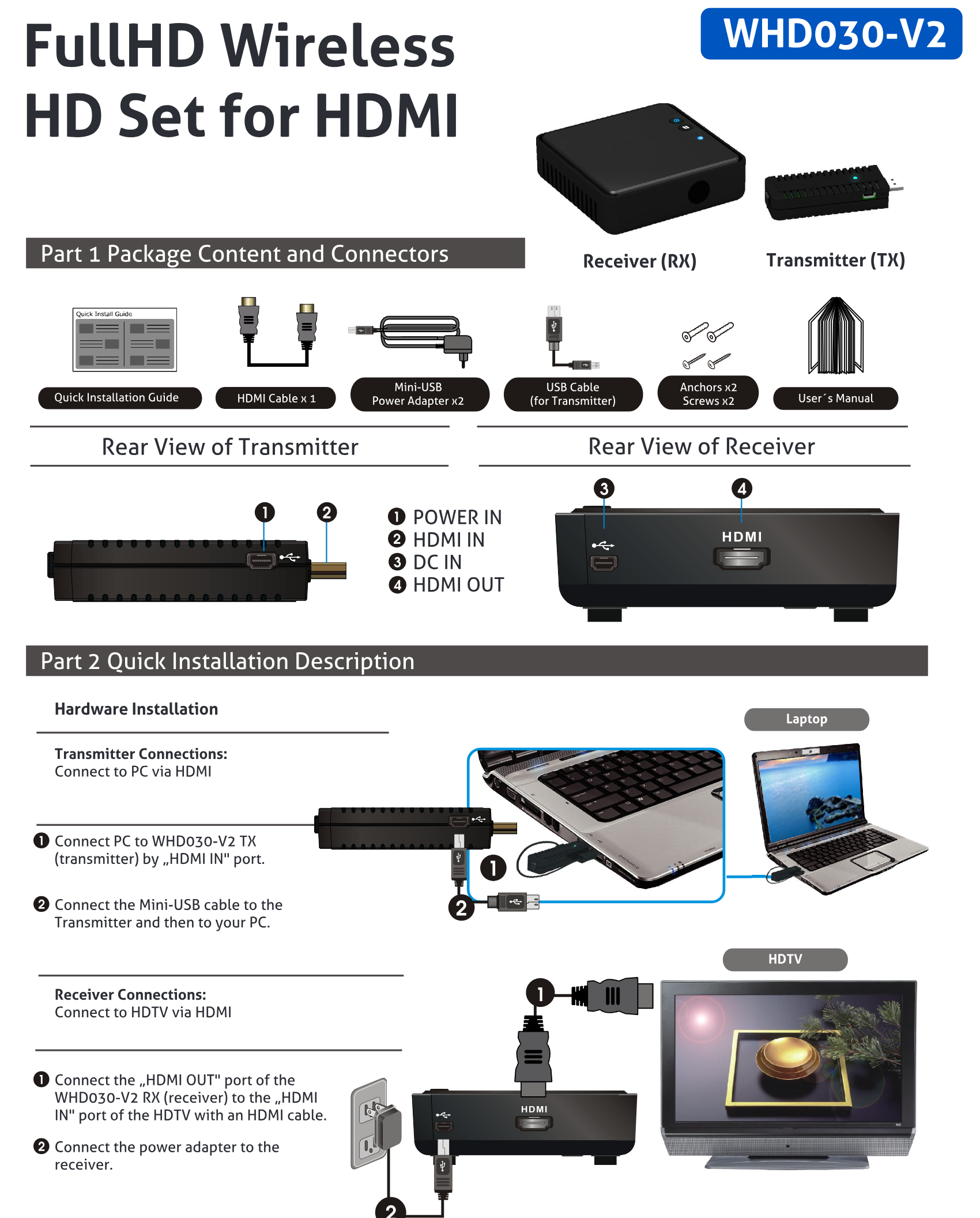
Rear View of Transmitter
- POWER IN
- HDMI IN
- DC IN
- HDMI OUT
Rear View of Receiver
- Quick Installation Guide
- HDMI Cable x 1
- User´s Manual
- Mini-USB
- Power Adapter x2
- USB Cable (for Transmitter)
- Anchors x2
- Screws x2
Hardware Installation
Transmitter Connections
- Connect to PC via HDMI
Receiver Connections
- Connect to HDTV via HDMI
- Connect PC to WHD030-V2 TX (transmitter) by „HDMI IN" port.
- Connect the „HDMI OUT" port of the WHD030-V2 RX (receiver) to the „HDMI IN" port of the HDTV with an HDMI cable.
- Connect the Mini-USB cable to the Transmitter and then to your PC.
- Connect the power adapter to the receiver.
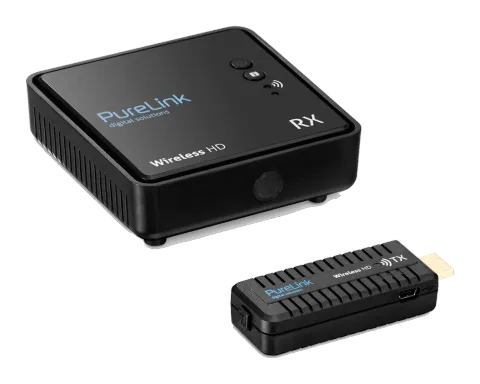
- Receiver (RX)
- Transmitter (TX)
- Laptop
- HDTV
Quick Installation Guide
FullHD Wireless HD Set for HDMI
Quick Installation Guide
WHD030-V2
Part 3 Operation
Activate the WHD030-V2 and set up the link
- Plug in the power for TX and RX, the WHD030-V2 set will establish the connection automatically.
- When the power of the transmitter is plugged off for over 10 minutes, the receiver will enter Standby mode (Power LED of receiver will turn red).
- When the receiver switches to Standby mode (PowerLED of receiver is red), plug in the power of transmitter and the transmitter will establish the connection automatically.
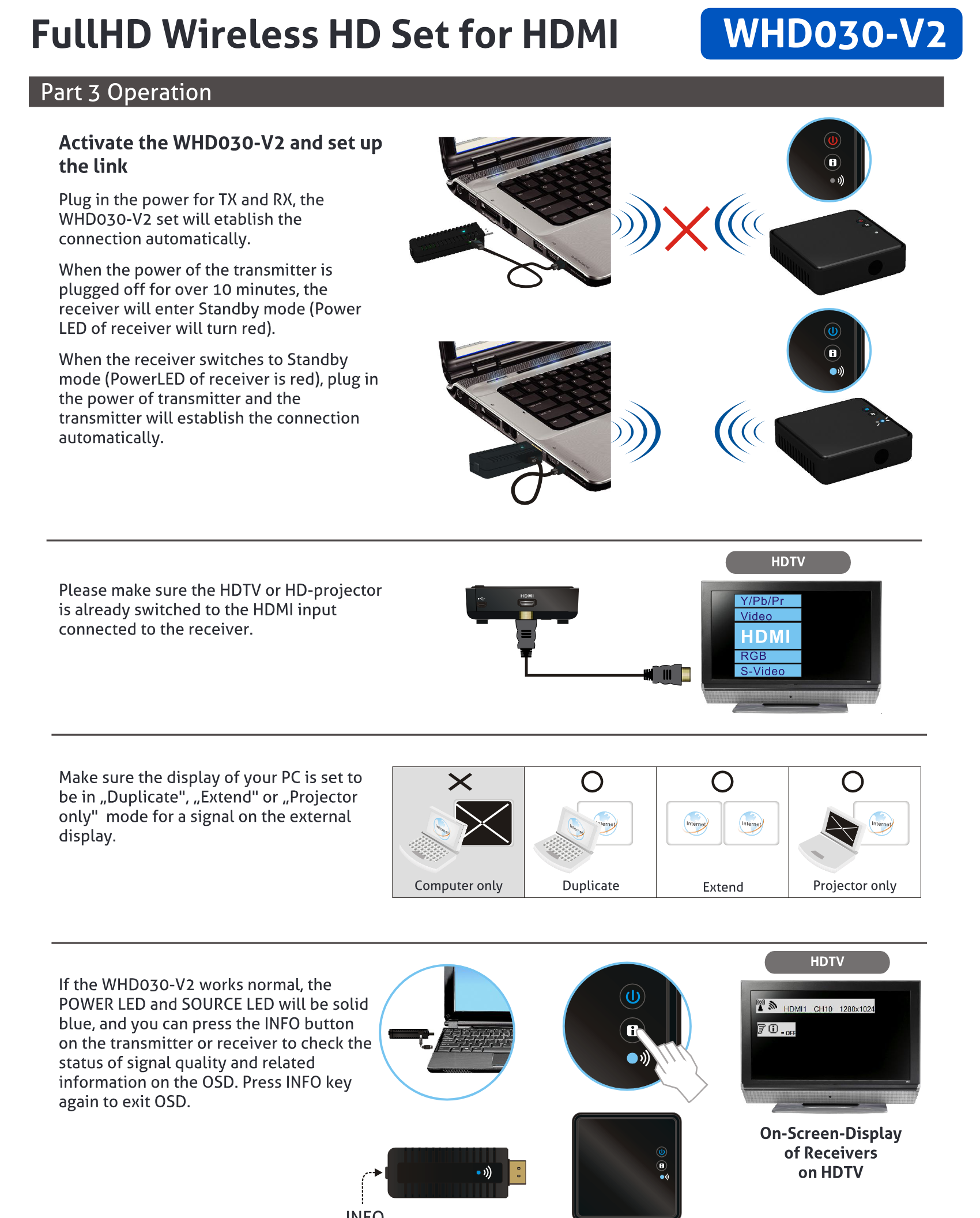
Please make sure the HDTV or HD-projector is already switched to the HDMI input connected to the receiver.
Make sure the display of your PC is set to be in Duplicate, Extend or Projector only mode for a signal on the external display.
If the WHD030-V2 works normal, the POWER LED and SOURCE LED will be solid blue, and you can press the INFO button on the transmitter or receiver to check the status of signal quality and related information on the OSD. Press INFO key again to exit OSD.
- Computer only
- Duplicate
- Extend
- Projector only
- INFO.
- HDTV
- HDTV
- On-Screen-Display of Receivers on HDTV
Legal & Compliance
Product identification
Model: WHD030-V2 – manual version 1.0
Warranty and liability
The manufacturer grants the full statutory warranty on all new devices. As the manufacturer has no influence on installation, the warranty only applies to the product itself. If you detect a fault or damage, please contact your dealer and provide your sales slip or invoice as proof of purchase.
The manufacturer is not liable for damage to persons or property caused by improper installation, operation or maintenance not described in this manual. Do not alter or modify the product or its accessories. Any use other than described in this manual is not permitted and voids warranty and guarantee.
Trademarks and disclaimer
Product model and logo are trademarks. All other company and product names mentioned are trademarks of their respective owners. All rights reserved. No part of this publication may be copied or reproduced without prior written permission. We reserve the right to make changes to the device, packaging or manual and accept no liability for misprints.
Disposal of electrical and electronic equipment
WEEE reg. no.: DE 93847290
The crossed-out wheelie bin symbol on the product, packaging or in this manual means that electrical and electronic equipment must not be disposed of with household waste at the end of its life. Hand in old devices free of charge at a public collection point or return them to a distributor obliged to take them back. Remove batteries and lamps that can be removed without destroying the device before handing it in, and delete any personal data stored on the device. Details are regulated by national law. By returning old devices you help protect the environment.
Packaging
Dispose of packaging separately by material (paper/cardboard, plastics) via the local collection systems. Keep packaging material away from children – risk of suffocation. Packaging register LUCID: DE5958616449295.