
INTRODUCTION
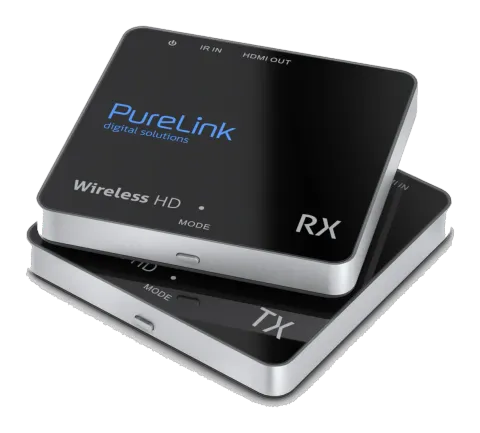
Congratulations on your purchase of the PureLink CSW110, which allows you to send a connected HD signal wirelessly to your HDTV or HD projector.
Examples of HD devices: Blu-ray players, HD set-top boxes, PlayStation4, XboxOne, etc. The CSW110 supports FullHD resolutions up to 1080p and all 3D formats. The inbuilt loop-through function (HDMI out) of the transmitter means that you can watch the same content on the 1st as on the 2nd HDTV or the HD projector (via receiver). The inbuilt infrared extender function allows you to operate HD equipment using your own remote control, even if it is kept in a closed cabinet!
PureLink products are manufactured with the utmost precision and of top quality. Please read this manual carefully and follow the instructions in order to get the very results from this product.
PACKAGE CONTENT
- 1x PureLink CSW110 Transmitter (TX)
- 1x PureLink CSW110 Receiver (RX)
- 1x IR Receiver
- 1x IR Emitter
- 2x Power adapter 5V1A (Micro USB)
- 1x Manual
- 1x Screw Set
- 1x Wall Mount
CONNECTION
Step 1
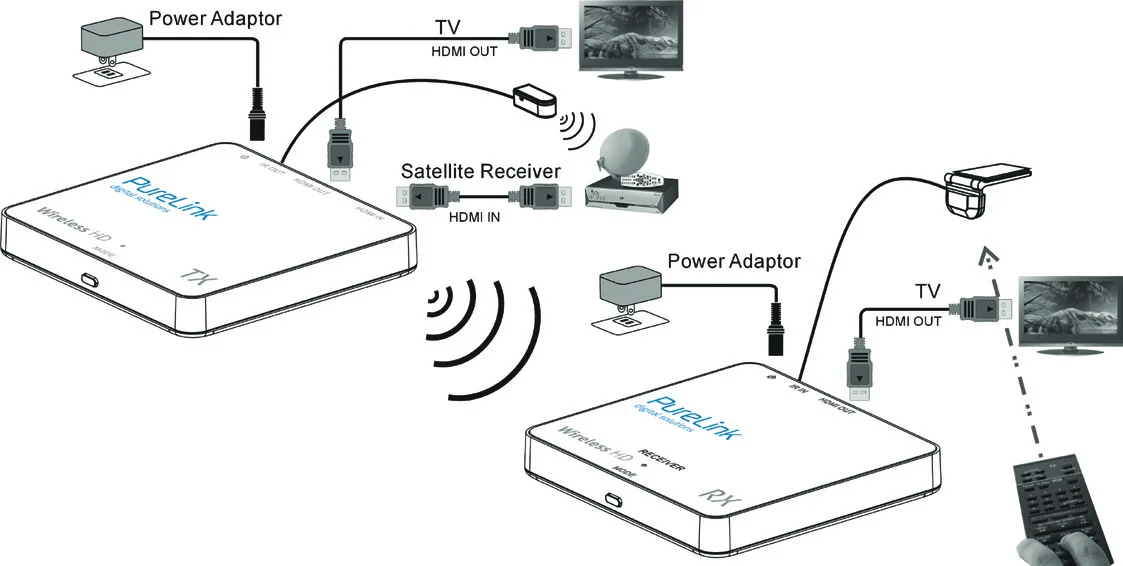
Use an HDMI cable to connect the HDMI IN of the CSW110 transmitter with a source device. You can use another HDMI cable to connect the HDMI OUT to a display (Loop-Through).
Step 2
Use an HDMI cable to connect the HDMI OUT of CSW110 receiver to a display device.
Step 3
(Skip this step if you don‘t need IR Extension) Connect the IR emitter to the CSW110 transmitter. Then place the emitter in front of the source device’s IR receiver. Connect the IR receiver to the CSW110 receiver. Then place the receiver probe in place, accessible for your remote control.
Step 4
Connect a DC 5V1A power adapter to the power jack (MicroUSB) of the CSW110 transmitter.
Step 5
Connect the other DC 5V1A power adapter to the power jack (MicroUSB) of the CSW110 receiver.
Step 6
To pair receiver and transmitter, press the MODE key on the receiver‘s box and then press the MODE key on the transmitter.
OPERATION
A. Installation
- Make sure your input AC voltage is compliant with to the adapter specifications.
- Only use the power adapters provided with the CSW110. If you use your own adapter, make sure the power output is 5V DC, 1A centre positive.
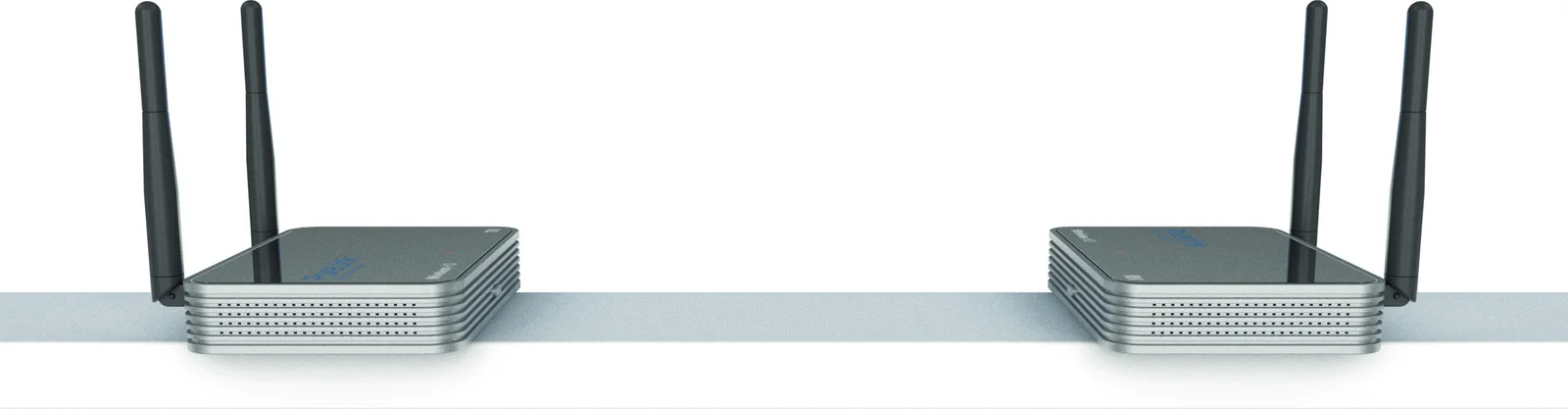
- In a direct line-of-sight, the maximum range of A/V signal transmission can reach up to about 30 meters. This distance can be shortened by obstacles or walls placed between transmitter and receiver. The optimum indoor range is under 30m.
- To ensure a good infrared remote control operation, aim your remote control at the IR receiver of the CSW110 and press the buttons firmly. For some remote controls it may be necessary to press and hold each button for about a second. The working angle of the IR receiver is +/- 15°.
- The remote controller has to be used within the distance of 0.3m - 5m at a working angle of +/- 15°.
B. Transmitter & Receiver Pairing MODE
- First press the “MODE” button on the receiver‘s box.
- You will see a message “Connecting through Pairing ... ” on screen.
- Then press the “MODE” button on the transmitter‘s box.
- Wait for a few seconds for auto connection.
C. IR Extending Function
- Make sure the IR emitter has been installed properly on the transmitter‘s box.
- Make sure the IR receiver has been installed properly on the receiver‘s box.
- Use the remote control of your source device to control the source form the receiver‘s box.
Note: Please do not cover CSW110 transmitter and receiver with any object! Those objects can block the air circulation and cause serious defects and injuries. The warranty will also be void.
FREQUENTLY ASKED QUESTIONS
1. When there is no picture presented:
Make sure the direct connection from the source device to the sink device works properly. Check if all connectors are connected well; check if all cables can support the transmission speed. High Speed HDMI cables from PureLink are recommended. Unplug the power cable to restart CSW110.
2. When there is no sound:
First, try to adjust the volume of the connected sink device (TV). Check cable connection to see if it works properly. Check cable to see if it supports video transmission only (DVI) or not. The HDCP encryption may not match very well at first connection; please unplug the power cable to restart CSW110.
3. When there is no 3D effect (Only for 3D hardware):
Make sure the 3D function of the 3D sink device is activated (set to AUTO or 3D ON). Make sure the 3D function of the 3D source device is activated (set to AUTO or 3D ON). Make sure that the power of the shutter glasses (if active 3D) is on. Check the power of CSW110.
4. If the image is unstable or a snowing image shows on screen:
You might get interference from other wireless devices or heavy voltage sources inside the room (ex. WiFi Router, Microwave, air conditioner). Please keep CSW110 away from those sources of interference. The wireless transmission distance may be too far or blocked by a wall or another object. Please place CSW110 in another location where you can get good signal and video quality. Please change the direction of transmitter and receiver to get a better connection.
5. If the wireless connection fails:
Please make sure, the power of the connected source device is turned ON. Unplug the power cable to restart CSW110.
6. IF the IR extending function is not work:
Check, if the IR emitter is connected to the CSW110 transmitter and place the emitter in front of the source device’s IR receiver. The IR extending function of CSW110 works with all 30~60kHz IR remote control systems. Some IR remote control systems use other frequencies or the IR signal pulse is too short and will not work with the IR extending function.
TECHNICAL DATA
Resolutions
| Parameter | Specification |
|---|---|
| Supported HDTV resolution (HDMI) | 1080p, 720p, 576p, 480p |
| Supported PC Resolution (max.) | Max. 1920 x 1080 px |
| Supported 3D formats | Frame Packing 1080p@24Hz, 720p@50/60Hz |
| Supported audio formats (digital) | Compressed formats, AC3, Dolby 5.1, DTS |
| Supported standards | HDMI, HDCP 2.0, EDID 1.3 |
Wireless
| Parameter | Specification |
|---|---|
| Frequency Band 1 | 5.18GHz ~ 5.24GHz |
| Operating range | Up to 30m LOS |
| Latency | Max. 0.5 seconds |
| RF Power Output | 10dBm max. / Receive Level -10dBm min. |
Transmitter
| Parameter | Specification |
|---|---|
| HDMI input | 1x |
| HDMI output | 1x |
| IR extender LED | Yes |
| Dimensions | 84.9 x 83 x 13.5mm |
Receiver
| Parameter | Specification |
|---|---|
| HDMI output | 1x |
| Dimensions | 84.9 x 83 x 13.5 |
Infrared
| Parameter | Specification |
|---|---|
| Supported IR frequency | 36kHz – 56kHz (NEC, RC5, RC6) |
Power supply
| Parameter | Specification |
|---|---|
| Switch mode power adapter | 100-240V AC @ 50-60Hz, 5V1A DC |
Note: The manufacturer reserves the right to make changes in the hardware, packaging, manual and any accompanying documentation without prior notice.
Note: The terms HDMI, HDMI High-Definition Multimedia Interface and the HDMI Logo are trademarks or registered trademarks of HDMI Licensing LLC in the United States and other countries. CSW110 incorporates HDMI® technology.
Note: Environmental Information for customers in the European Union
European Directive 2012/19/EU requires that the equipment bearing this symbol on the product and/or its packaging must not be disposed of with unsorted municipal waste. The symbol indicates that this product should be disposed of separately from regular household waste streams. It is your responsibility to dispose of this and other electric and electronic equipment via designated collection facilities appointed by the government or local authorities. Correct disposal and recycling will help prevent potential negative consequences to the environment and human health. For more detailed information about the disposal of your old equipment, please contact your local authorities, waste disposal service or the shop where you purchased the product.
REQUIREMENTS / CONFORMITY
This product is compliant with the following requirements:
CE-Conformity
- RED | 2014/53/EU (Radio Emission Directive)
PureLink GmbH hereby declares that the CSW110 radio communication system complies with Directive 2014/53/EU.
Note: The full text of the EU Declaration of Conformity is available at the following internet address: http://www.purelink.de/ce/4251364708026_CE.pdf
Caution: Dispose of all electronic products by taking them to your local collection point, recycling center for such equipment, or your specialized dealer. The product includes hazardous material that can cause harm to health and environment when disposed of incorrectly.
Please help to protect the environment in which we all live.
Note: The respective declarations are available on request from your dealer / reseller. For any questions regarding regulatory compliance of our products, contact your dealer or reseller. Before putting the product into operation please observe the respective country-specific regulations!
0°
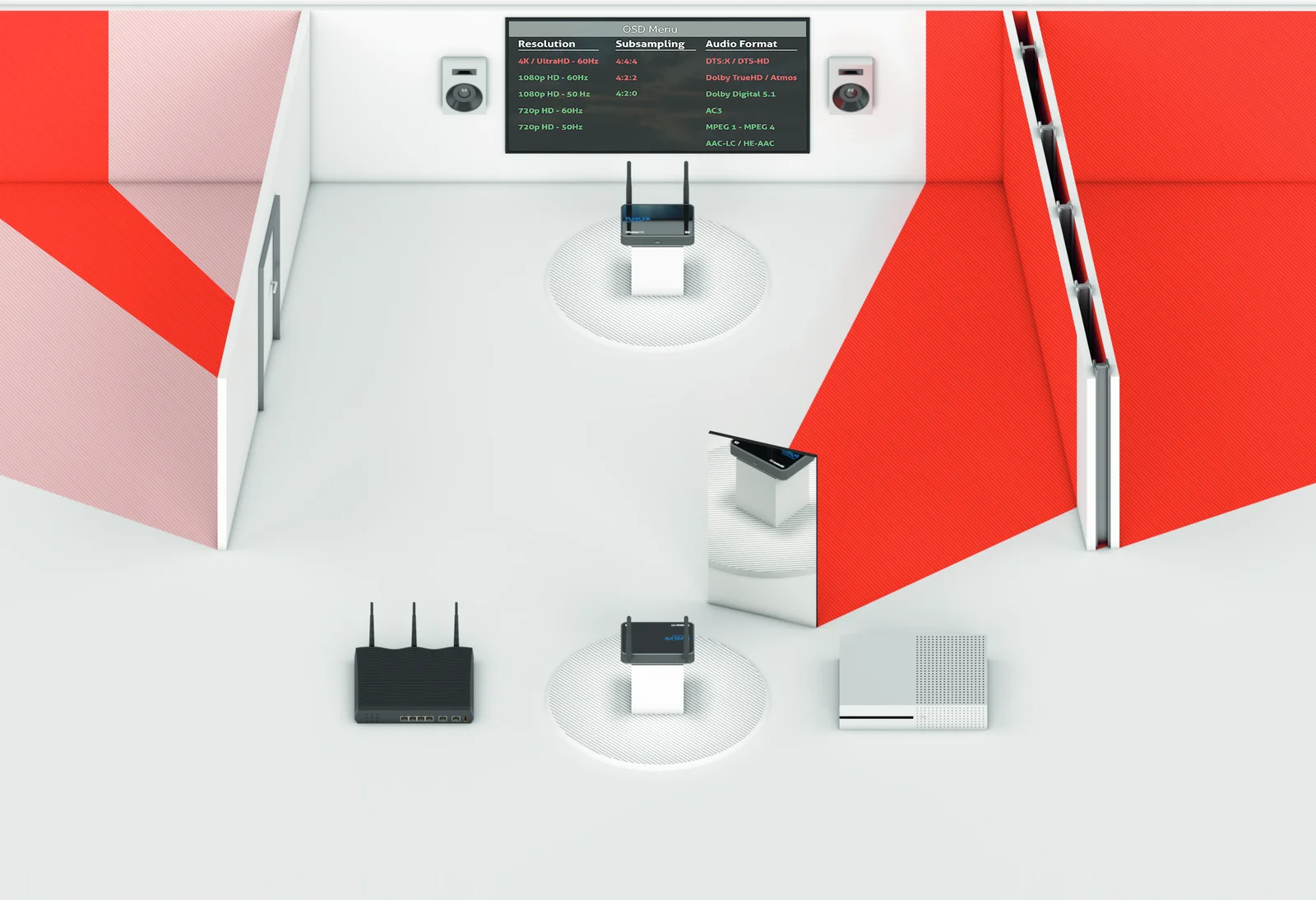
- Verzögerung > 500ms / Delay > 500ms
- 1m Abstand zu anderen Geräten / 1m Distance to other devices
- Wi-Fi-Router können für Interferenzen sorgen / Wi-Fi-Routers can cause interferences
- Spiegel blockieren das Signal / Mirrors block the signal
- Stahlbetonwände blockieren / reflektieren das Signal / Ferroconcrete walls block / reflect the signal
- Stein- und Betonwände absorbieren das Signal (teilweise) / Stone- and concrete walls (partly) absorb the signal
- Metalltüren blockieren / reflektieren das Signal / Metal doors block / reflect the signal
Legal & Compliance
Product identification
Model: CSW110 – manual version 1.0
Warranty and liability
The manufacturer grants the full statutory warranty on all new devices. As the manufacturer has no influence on installation, the warranty only applies to the product itself. If you detect a fault or damage, please contact your dealer and provide your sales slip or invoice as proof of purchase.
The manufacturer is not liable for damage to persons or property caused by improper installation, operation or maintenance not described in this manual. Do not alter or modify the product or its accessories. Any use other than described in this manual is not permitted and voids warranty and guarantee.
Trademarks and disclaimer
Product model and logo are trademarks. All other company and product names mentioned are trademarks of their respective owners. All rights reserved. No part of this publication may be copied or reproduced without prior written permission. We reserve the right to make changes to the device, packaging or manual and accept no liability for misprints.
Disposal of electrical and electronic equipment
WEEE reg. no.: DE 93847290
The crossed-out wheelie bin symbol on the product, packaging or in this manual means that electrical and electronic equipment must not be disposed of with household waste at the end of its life. Hand in old devices free of charge at a public collection point or return them to a distributor obliged to take them back. Remove batteries and lamps that can be removed without destroying the device before handing it in, and delete any personal data stored on the device. Details are regulated by national law. By returning old devices you help protect the environment.
Packaging
Dispose of packaging separately by material (paper/cardboard, plastics) via the local collection systems. Keep packaging material away from children – risk of suffocation. Packaging register LUCID: DE5958616449295.