
uControl basics
Navigating your smart home starts here.
The uControl interface adapts based on your HDA system. The example below highlights features that are always available.
- uControl menu: Reveals the zone menu which includes global Sequences and access app settings.
- Pages: If your device controls go beyond a single page they will be listed here. You can swipe left or right to navigate to additional pages.
- Zone name: Shows the current zone which you are controlling. Tap to switch to another zone in your property.
- Power: Lists all TV and Audio power controls in the selected zone, including any Room Off commands created in uOS.
- Control Selector Pills: Tap a control selector pill to choose what you want to control. When a pill is active, its ring will glow yellow. For more details, refer to Page 5.
- Interface area: This interface will change depending on the device that is being controlled. All device control will load in this space.
- Volume control & active audio: Volume control for the device that is in charge of audio amplification in your zone. If your device supports feedback then the current volume level will be displayed.
Made for everyday control.
Enjoy intuitive control over your media, music and mood lighting to create the perfect ambiance for any occasion, all from one elegant interface on your iPhone or iPad.
uControl basics
An overview of the main parts of the app interface.
uControl menu
Access to Global Sequences and Functions.
Getting around
How to find your devices in uControl.
Power
Turning your video and audio devices on or off.
Watching TV
Controlling what you watch.
Listening to music
Accessing audio streamed to your Sonos device.
Smart devices
Control other smart devices in your room.
Wall Mode
Simplified, always-available interface for your system.
Getting around
Media, music & mood controls all in one place.
Watching TV, listening to music or adjusting a smart device can all be done from uControl’s cluster of control pill buttons.
- Display Pill: Loads controls for your TV or projector. If multiple displays are available, you can select which one to control.
- Audio Pill: Appears when your HDA system routes music or non-TV audio to your speakers.
- Smarts Pill: Displays all smart device controls in the zone, including Sequences and Functions set for that zone.
- Media & Music Pill: Opens a menu of all video and audio sources available in your zone. The label updates to show what source is currently being controlled.
- TV
- Smarts
- Apple TV
- Music
Power
Get your room ready quickly.
Power controls for all your video and audio devices in your zone. Controls for lighting and other smart devices are found by tapping on the “Smarts” pill.
- Power: Tap to reveal the power menu.
- ROOM OFF: If a Room Off Sequence is configured in uOS.
- TV | Audio power: TV and speaker (if supported) will always appear above all other devices.
- Device list: Displays audio and video sources with power control. The icon can differ depending on how your device is powered on or off (see below).
- Toggle: A single tap will turn the device on, and a second tap will turn it off, toggling between states.
- Switch: The switch icon adjusts its position automatically based on your device’s status: on or off.
- Dual Controls: If your device has a specific button for powering on and powering off then uControl will display both together.
Watching TV
One remote to control them all.
Selecting the “TV” or the “Media & Music” pill to give you access to your TV or video content. The interface is tailored to the device you are controlling.
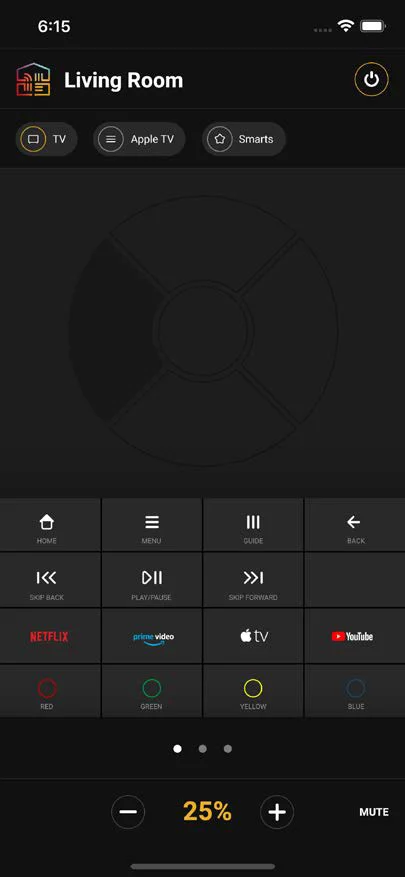
- Apple Airdrop: Easily share your button layout customisations with other iOS devices using Apple Airdrop inside uControl.
- Gesture area: The Gesture Pad is a distinctive feature of uControl, designed to help you navigate your favorite TV shows and content without looking at the screen. It supports four intuitive control inputs:
- Single tap: Tap on the circular segments to perform directional commands: Up, Down, Left, Right. Tapping on the centre circle for an “Enter / OK” command.
- Press & hold: Press and hold any segment to repeat the associated command until you release. Press and hold the centre circle to perform a “Back” action.
- Swipe: Swipe in the desired direction to navigate. Swiping can start anywhere on the Gesture area, though starting near the centre is recommended.
- Swipe & hold: Swipe and hold to repeat the directional command until you lift your finger.
This combination of gestures makes navigation both smooth and effortless.
- Power: Lists all TV and Audio power controls in the selected zone, including any Room Off commands created in uOS.
- Customise: If you do not like the default button layout then you can enter customisation mode to change any button on the grid.
- Volume control & active audio: Volume control for the device that is in charge of audio amplification in your zone. If your device supports feedback then the current volume level will be displayed.
Listening to music
With Sonos built in.
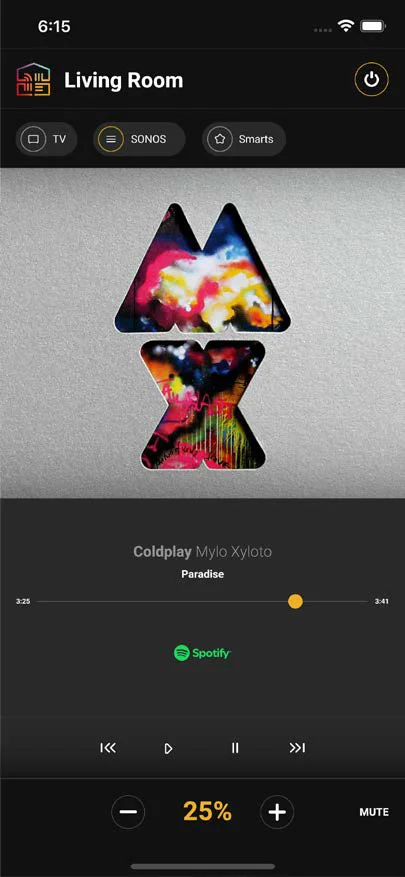
uControl comes with Sonos built in. This means you can see what music is playing through your Sonos system and change what you’re listening to.
- Volume control & active audio: Volume control for the device that is in charge of audio amplification in your zone. If your device supports feedback then the current volume level will be displayed.
- Launch app: The audio source streaming content to SONOS is displayed here. Tapping on this icon will launch the native app on your iOS device (if supported).
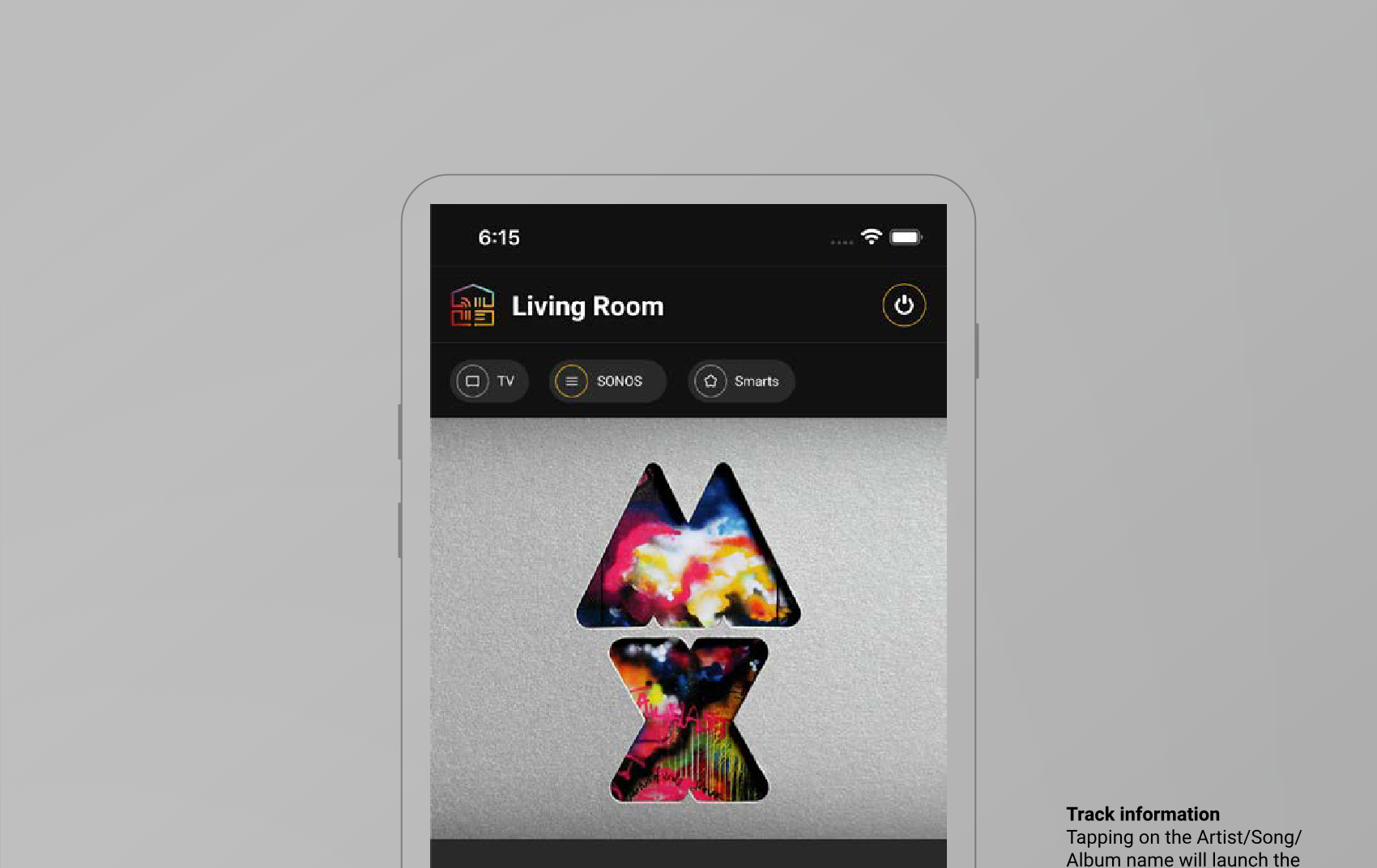
- Track information: Tapping on the Artist/Song/Album name will launch the audio source’s native app and navigate you to the artist page (if supported).
Smart devices
Wall Mode
The uControl interface adapts based on your HDA system. The example
Smart devices.
Scene & mood control.
Easily manage all your smart devices and mood settings from a single
location using uControl’s simple on-screen tiles for seamless control.
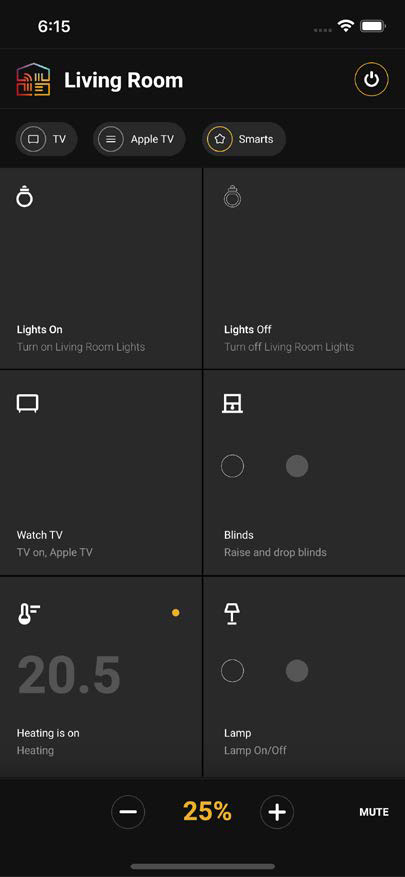
Smart tiles
All smart controls for your zone or room will appear as a tile. Six tiles will fit on-screen at any one time. Swipe up to reveal more tiles.
On/Off or Up/Down
If you see these circular icons, the tile supports opposing actions, such as:
- Blinds: Up or Down
- Plugs: On or Off
- Lights: On or Off
Tap the outlined circle to perform the “Off” action and the filled circle to perform the “On” action.
Meaningful descriptions
Give each tile a meaningful description that indicates what it is controlling. This can be configured inside uOS, along with the icon type.
uControl Driver tile
A tile with an orange dot in the corner indicates it’s connected to a uControl Driver. Tapping this tile opens a specialised interface for directly controlling the linked device.
Standard tile
Any standard Sequence made in uOS will appear as a plain tile and tapping on the tile will perform the Sequence assigned to it.
Wall Mode.
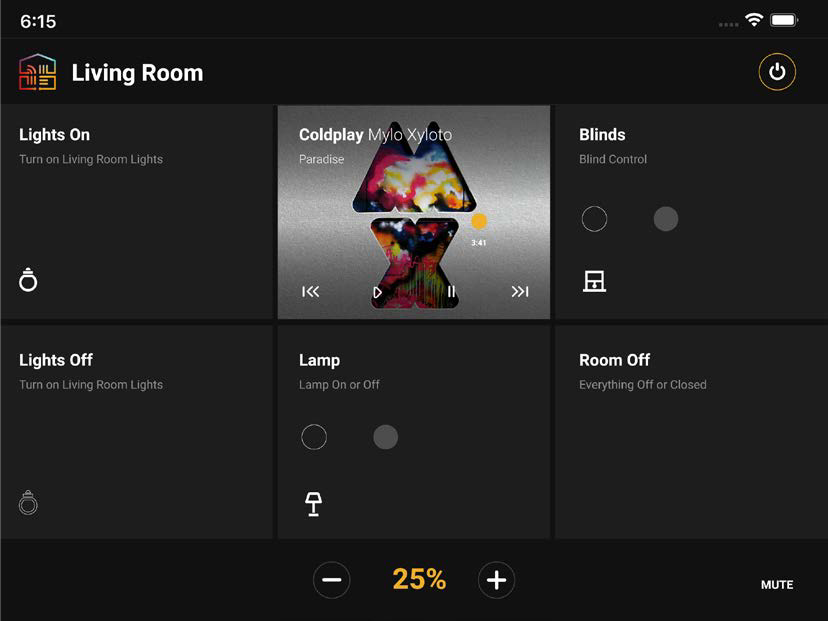
Always accessible controls you can understand.
Wall Mode simplifies your controls into six always-visible, easy-to-use tiles, making it ideal for walls, desktops, or couches.
Legal & Compliance
Product identification
Models: HDA-258944, HDA-258941, HDA-258945, HDA-258947, HDA-258948, HDA-258950 – manual version 1.0
Warranty and liability
The manufacturer grants the full statutory warranty on all new devices. As the manufacturer has no influence on installation, the warranty only applies to the product itself. If you detect a fault or damage, please contact your dealer and provide your sales slip or invoice as proof of purchase.
The manufacturer is not liable for damage to persons or property caused by improper installation, operation or maintenance not described in this manual. Do not alter or modify the product or its accessories. Any use other than described in this manual is not permitted and voids warranty and guarantee.
Trademarks and disclaimer
Product model and logo are trademarks. All other company and product names mentioned are trademarks of their respective owners. All rights reserved. No part of this publication may be copied or reproduced without prior written permission. We reserve the right to make changes to the device, packaging or manual and accept no liability for misprints.
Disposal of electrical and electronic equipment
WEEE reg. no.: DE 93847290
The crossed-out wheelie bin symbol on the product, packaging or in this manual means that electrical and electronic equipment must not be disposed of with household waste at the end of its life. Hand in old devices free of charge at a public collection point or return them to a distributor obliged to take them back. Remove batteries and lamps that can be removed without destroying the device before handing it in, and delete any personal data stored on the device. Details are regulated by national law. By returning old devices you help protect the environment.
Batteries
Applies to: HDA-258944
Batteries must not be disposed of with household waste. Return used batteries free of charge to collection points or retailers.
Packaging
Dispose of packaging separately by material (paper/cardboard, plastics) via the local collection systems. Keep packaging material away from children – risk of suffocation. Packaging register LUCID: DE5958616449295.