
Notices for using Bluetooth
Bluetooth is a wireless technology standard that uses a 2.4 GHz frequency to connect to various devices over short distances. It can connect and exchange data with other Bluetooth enabled devices, such as mobile devices, without connecting via cables.
- The Bluetooth connection range is approx. 10 m. The distance may vary depending on the environment the devices are used in.
- Ensure that there are no obstacles between the connected devices, including human bodies, walls, corners, or fences.
- Bluetooth uses the same frequency as some industrial, scientific, medical, and low power products and interference may occur when making connections near these types of products.
- Do not use the Bluetooth feature for illegal purposes (for example, pirating copies of files or illegally tapping communications for commercial purposes).
Product Introduction
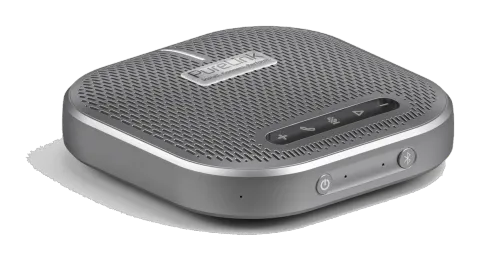
Thanks for choosing the omnidirectional microphone/loudspeaker, which is designed for conference with USB and Bluetooth connection. The slim and compact design let you have a meeting anywhere, home, office or when traveling.
Features
- Innovative automatic gain technology.
- The full duplex transmission mode realizes a clearer and smoother two-way call and restore the real conference experience.
- Adaptive high definition extension technology ensures clear and natural sound quality performance.
- Dynamic balance and bass enhancement provides clear and natural telephone effect.
- Built in 4 omnidirectional microphones, full 360 degree radio playback ensures to collect everyone’s speech
- Supports a variety of network office software, like zoom, WeChat, Skype and etc.
- Bluetooth 5.0, supports AVRCP, A2DP, HFP and SBC codec.
- Portable & considerate design.
Packing List
- 1x PT-SPEAK-100
- 1x USB Cable (USB-A to USB-C)
- 1x User Manual
Note: Please contact your distributor immediately if any damage or defect in the components is found.
Panel Description
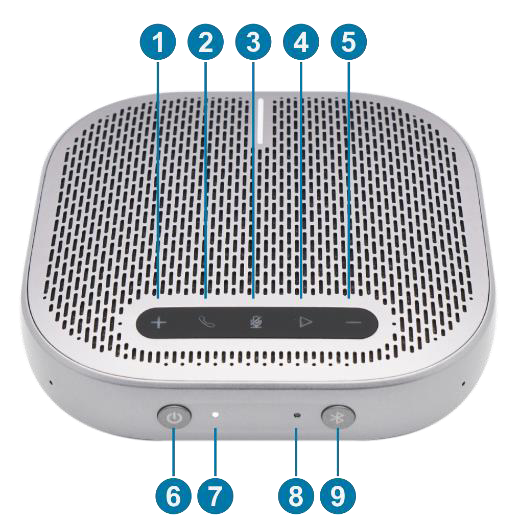
Front Panel
| No. | Name | Description |
|---|---|---|
| ① | Volume Up Button | Press or hold the button to turn up the volume. |
| ② | Call Button | Press the button to answer or end calls. Press and hold the button for 2s to refuse calls |
| ③ | Mute Button | Press the button to mute the volume. |
| ④ | Pause Button | Press the button to play or pause the music |
| ⑤ | Volume Down Button | Press or hold the button to turn down the volume. |
| No. | Name | Description |
|---|---|---|
| ⑥ | Power Button | Press and hold the power button for 2 s to turn on the power, the power LED lights white and the status indicator will be on from top to bottom and then off. Press and hold the power button for 2 s to turn off the power, the power LED will be off and the status indicator will be on from bottom to top and then off. |
| No. | Name | Description |
|---|---|---|
| ⑦ | Power LED | Red and white bi-color LED The LED lights red when the device is under charging. The LED lights white when the device is fully charged. The red LED flashes when the device is low battery. |
| ⑧ | Bluetooth LED | Blue and red bi-color LED. The blue LED flashes when the device is in Bluetooth pairing. The blue LED lights on when its Bluetooth is connected. |
| ⑨ | Bluetooth Button | Press the button to enter the Bluetooth pairing. |
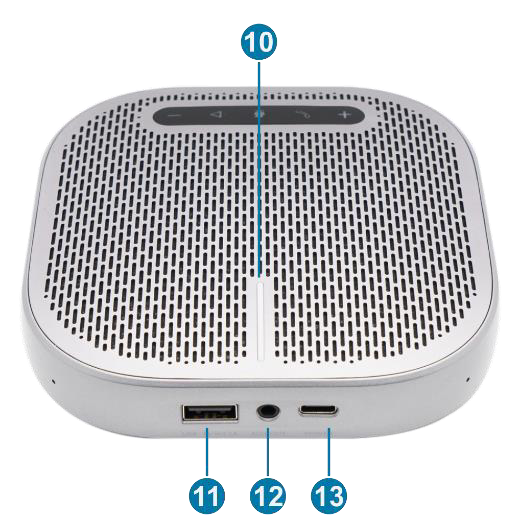
Rear Panel
| No. | Name | Description |
|---|---|---|
| ⑩ | Light Bar Indicator | Consist of 5 LEDs to indicate status. ⚫ The indicators light red for 2s when the device is connected to the computer via USB. ⚫ The indicators always light red when mute. ⚫ The indicators light blue when a call comes in. ⚫ Some blue indicators light on when turning volume up or down. |
SAFETY PRECAUTIONS
To ensure the best from the product, please read all instructions carefully before using the device. Save this manual for further reference.
- Unpack the equipment carefully and save the original box and packing material for possible future shipment.
- Follow basic safety precautions to reduce the risk of fire, electrical shock and injury to persons.
- Do not dismantle the housing or modify the module. It may result in electrical shock or burn.
- Using supplies or parts not meeting the products’ specifications may cause damage, deterioration or malfunction.
- Refer all servicing to qualified service personnel.
- To prevent fire or shock hazard, do not expose the unit to rain, moisture or install this product near water.
- Do not put any heavy items on the extension cable in case of protrusion.
- Do not remove the housing of the device as opening or removing the housing may expose you to dangerous voltage or other hazards.
- Install the device in a place with sufficient ventilation to avoid damage caused by overheat.
- Keep the module away from liquids.
- Spillage into the housing may result in fire, electrical shock, or equipment damage. If an object or liquid falls or spills on to the housing, unplug the module immediately.
- Do not twist or pull by force ends of the optical cable. It can cause malfunction.
- Do not use liquid or aerosol cleaners to clean this unit. Always unplug the power to the device before cleaning.
- Unplug the power cord when left unused for a long period of time.
- Information on disposal for scrapped devices: do not burn or mix with general household waste, please treat them as normal electrical wastes
System Connection
USB-A Port: Power supply for other devices
Audio output: Connect with the external speaker via an AUX cable so that the audio can be played through the speaker.
USB-C Port: Charge the speakerphone or connect to the computer via USB cable.
Connects to the computer with a USB cable.
- Connects USB-C port of PA3SP to the computer with a USB cable.
- The connection is established when you find an USB device called “Speakerphone”.
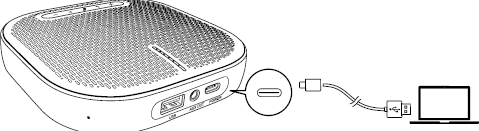
Note: It’s improper to connect to the USB wire to a mobile phone. Please don’t try!
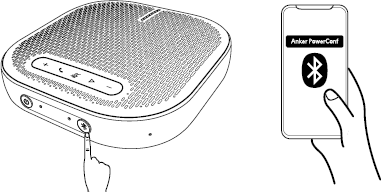
Connects to the computer or mobile equipment via Bluetooth pairing
- When the product is powered on for the first time, it will automatically enter the Bluetooth pairing mode, please connect the Bluetooth called “Speakerphone”.
Charge
- Every time the product is powered on, it is automatically connected to the equipment successfully connected last time (if available).
- To disconnect the Bluetooth connection, press the Bluetooth button again.
Charge the product
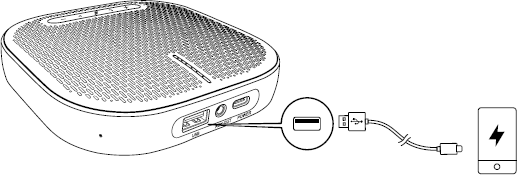
Charge external equipment
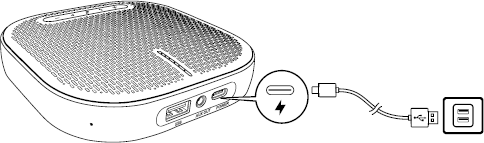
Note: During powering off or charging or the remaining battery is less than 10%, the charging output will not be carried out.
Technical Specification
| Specification | Value |
|---|---|
| Charging Input | 5V 2A |
| Charging Output | 5V 2.1A |
| Rated output power | 3W |
| Battery capacity | 6500mAh |
| Charging hour | 4h |
| Call duration | 24h |
| Frequency range | 20Hz - 20kHz |
| Bluetooth version | V 5.0 |
| Bluetooth frequency | 2.402 -2.480 GHz |
| Bluetooth range | 10m / 33ft |
| Connection mode | USB 2.0 and Bluetooth |
| AUX Output | 3.5mm audio output |
| Cover Area | 15 - 30 ㎡ |
| SNR | 65dB |
| Bluetooth Name | Speakerphone |
| USB Name | Speakerphone |
| Dimension (W*H*D) | 124mm x 124mm × 32mm |
| Net Weight | 335g |
| Operation Temperature | 0 to + 40℃ |
| Storage Temperature | -40 to + 60℃ |
After-Sales Service
If problems appear when using the product, please deal with the problems referring to this user manual. During the warranty period, any transport costs are borne by the customer.
- Product Limited Warranty: The product will be free from defects in materials and workmanship for three years (The purchase invoice shall prevail). Proof of purchase in the form of a bill of sale or receipted invoice which is evidence that the unit is within the Warranty period must be presented to obtain warranty service.
- What the warranty does not cover (servicing available for a fee):
- Warranty expiration.
- Factory applied serial number has been altered or removed from the product.
- Damage, deterioration or malfunction caused by:
- Normal wear and tear.
- Use of supplies or parts not meeting our specifications.
- No certificate or invoice as the proof of warranty.
- The product model shown on the warranty card does not match with the model of the product for repairing or had been altered.
- Damage caused by force majeure.
- Servicing not authorized by distributor.
- Any other causes which do not relate to a product defect.
- Delivery, installation or labor charges for installation or setup of the product.
- Technical Support: For any questions or problems, contact your distributor or reseller and tell them the respective product name and version, the detailed failure situation as well as the formation of the case.
Asking for Assistance
Technical Support
Phone: +49 5971 800299 - 0
Fax: +49 5971 800299 - 99
Technical Support Hours
8:30 AM to 5:00 PM Monday -Thursday
8:30 AM to 4:00 PM Friday
Write to
PureLink GmbH
Von-Liebig-Straße 10
D - 48432 Rheine
www.purelink.de
info@purelink.de
Legal & Compliance
Product identification
Model: PT-SPEAK-100 – manual version 1.0
Trademarks and disclaimer
Product model and logo are trademarks. All other company and product names mentioned are trademarks of their respective owners. All rights reserved. No part of this publication may be copied or reproduced without prior written permission. We reserve the right to make changes to the device, packaging or manual and accept no liability for misprints.
EU conformity
PureLink GmbH hereby declares that the product is in compliance with the Radio Equipment Directive 2014/35/EU and the RoHS Directive 2011/65/EU amended by 2015/863 EU.
| Directive / Regulation |
|---|
| 2014/35/EU |
| 2011/65/EU |
The full text of the EU Declaration of Conformity is available at: www.purelink.de
FCC
FCC FCC FCC FCC Statement It has been tested and found to comply with the limits for a Class B digital device, pursuant to part 15 of the FCC Rules.
Disposal of electrical and electronic equipment
WEEE reg. no.: DE 93847290
The crossed-out wheelie bin symbol on the product, packaging or in this manual means that electrical and electronic equipment must not be disposed of with household waste at the end of its life. Hand in old devices free of charge at a public collection point or return them to a distributor obliged to take them back. Remove batteries and lamps that can be removed without destroying the device before handing it in, and delete any personal data stored on the device. Details are regulated by national law. By returning old devices you help protect the environment.
Batteries
Batteries must not be disposed of with household waste. Return used batteries free of charge to collection points or retailers.
Packaging
Dispose of packaging separately by material (paper/cardboard, plastics) via the local collection systems. Keep packaging material away from children – risk of suffocation. Packaging register LUCID: DE5958616449295.